

Begin with the week you actually have
Meal planning works best when it responds to the week in front of you, not an ideal one. Look at the nights you will be home, the ingredients you already have, and the meals that are realistic to cook. Start with a few dependable recipes rather than trying to assign every meal at once.
Open Meal Plan from the app navigation. The planner can draw from recipes across your cookbooks, so it is useful when your week includes a family favorite from one book and a weeknight recipe from another. Use the previous and next controls to view a different week, or return to the current week when you are ready to plan now.
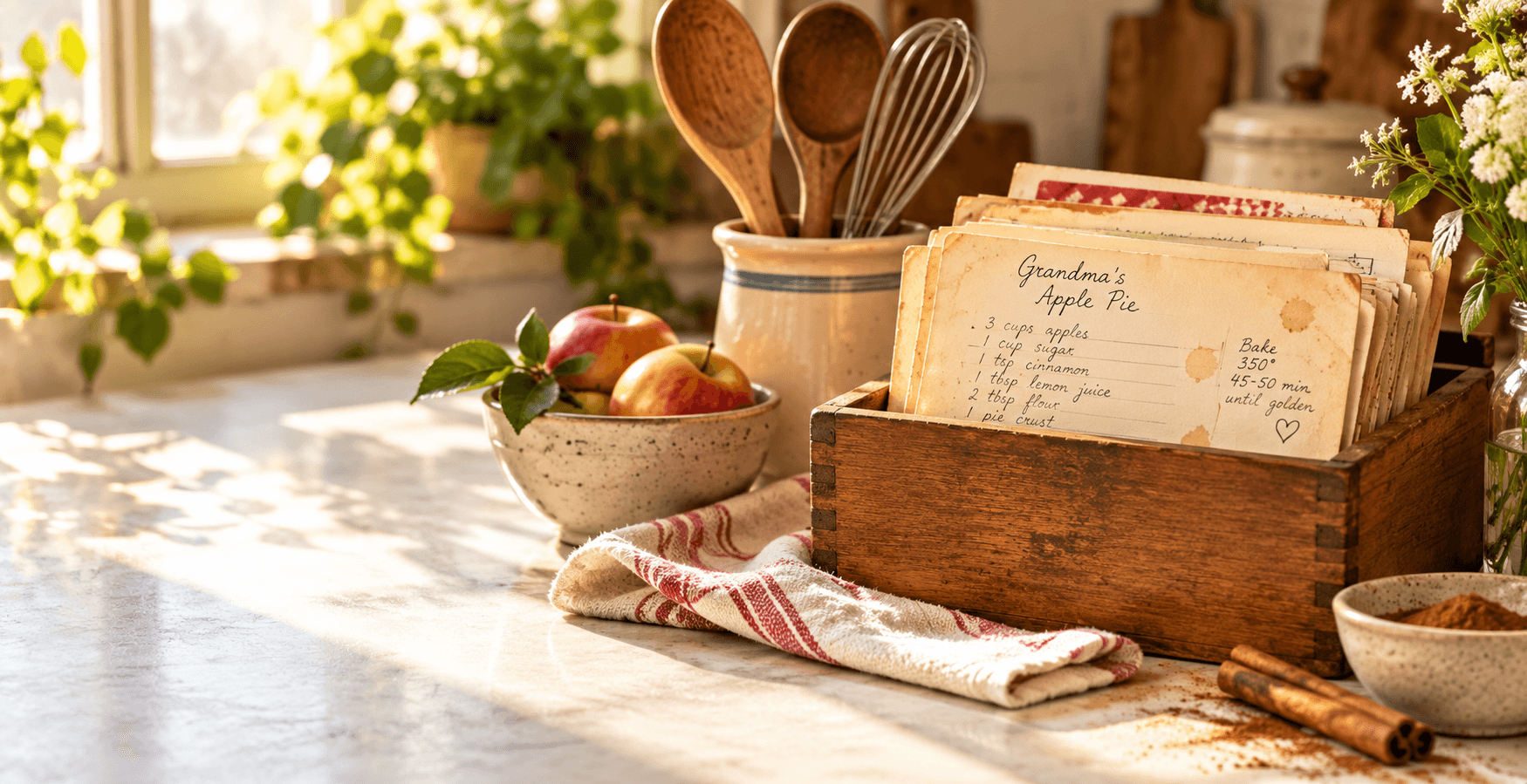
A good meal plan makes room for real life and still answers the question: what are we eating tonight?
Assign recipes to the days and meal slots that fit
Choose a meal slot on a day, then search or browse for the recipe you want. Add only what is helpful: dinner for three busy nights may be enough, while a weekend might deserve breakfast or a larger project. Change or remove a planned recipe as the week changes; the plan is a working tool, not a commitment.
Prefer recipes with complete ingredient lists when you plan to send them to groceries. A recipe with a useful title and clear ingredients is enough to start; notes, photos, and extra details can make it easier to choose, but they are not required for planning.
Send this week's ingredients to your grocery list
When your current week's meals are set, choose Add to grocery list in the meal planner. You can also open Groceries and choose Import from meal plan. Home Cooked reads the ingredients from the planned recipes and adds items that are not already on your list.
The import reports what it added and avoids adding an identical item already on the list. It is still worth reviewing the result: pantry staples may already be on hand, and separate recipes can need more of the same ingredient than their individual list entries suggest. Add a manual item whenever your plan depends on something that is not part of a recipe.
Keep the grocery list practical at the store
The grocery list groups items by familiar store sections, making it easier to work through a shop without constantly rearranging the list. Add one-off needs with the quick-add field, then check items off as they go into the cart. Clear checked items after a trip, or clear the full list only when you are certain you no longer need it.
The list remains useful when your connection is unreliable. Changes made while offline are kept on your device and sync when you reconnect. Before relying on a shared or newly imported list, give it a moment to sync so the latest changes are reflected.
Adjust the plan without starting over
Dinner plans change. If you swap a meal after importing, update the plan and review the grocery list rather than assuming it has been rebuilt automatically. Remove or check off items you no longer need, then import the current week's plan again when you want to bring in ingredients that are still missing. Existing matching items are skipped.
Over time, use the planner to notice which recipes genuinely work for your household. A modest plan that produces a calmer grocery trip is more valuable than a perfectly filled calendar you abandon by Wednesday.
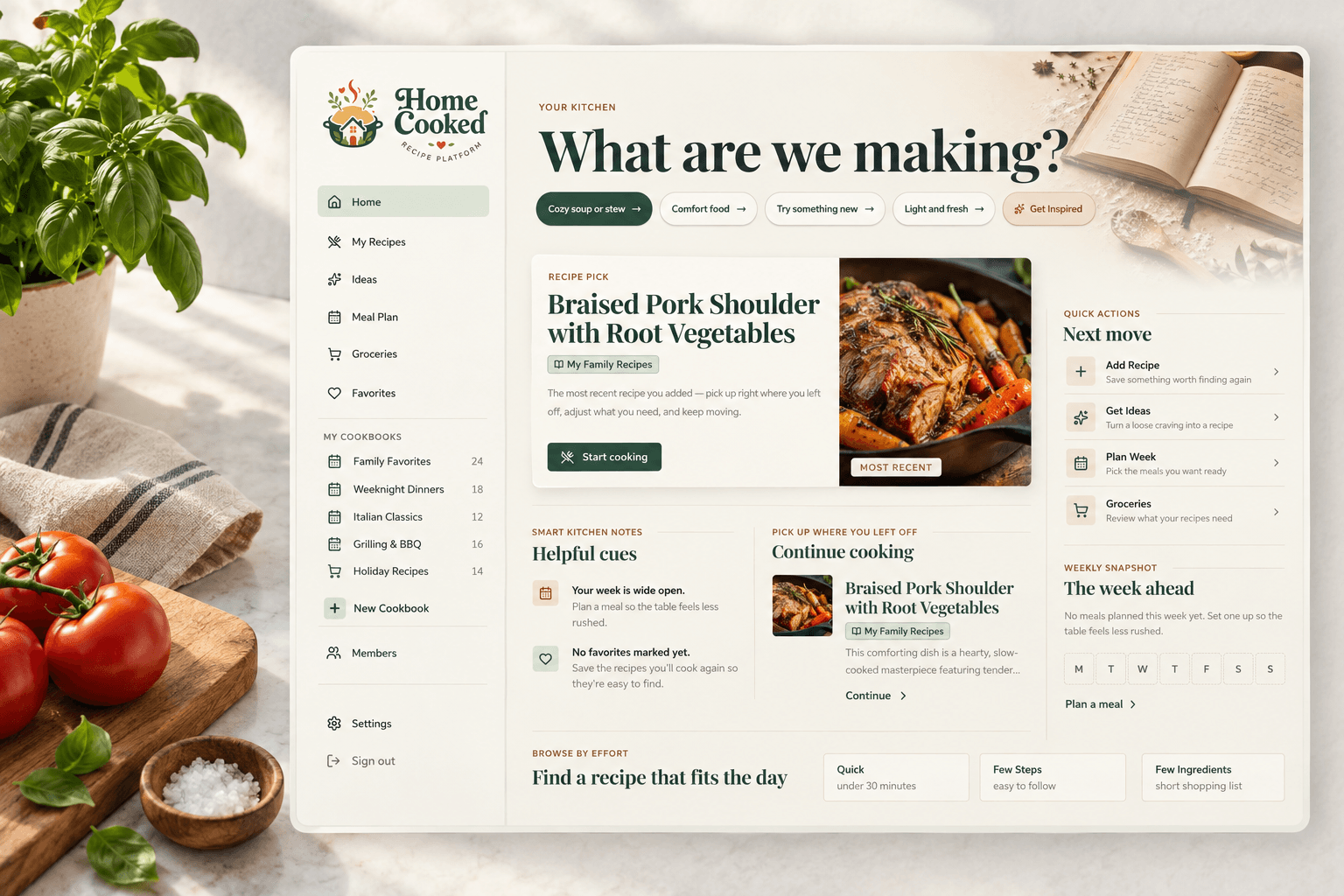
A simpler way to keep everything together
Give the recipes you love a real home
Home Cooked lets you collect recipes into cookbooks, add the notes that make them yours, and share individual recipes or a whole cookbook when the plan and your family’s needs make that a good fit.
Create your cookbook